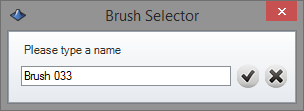
Create a profile


Create a new profile
There are two ways to create a profile, using the Profile Editor or from curve.
Profile Editor
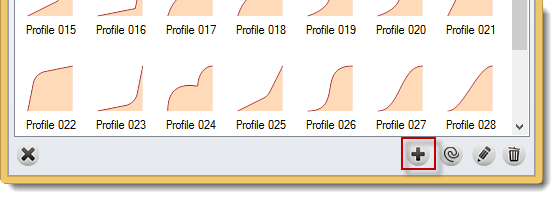
You can add a new profile in the Profile selector. Click on (+) icon.
Create a control point
Just click over the line and a point will be added, you can create as many points as you want in this case there are 2 points:
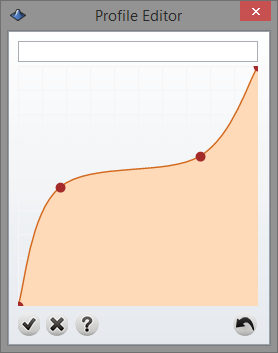
To create a "sharp" point just press Shift Key while you click over the location where you want to add it:
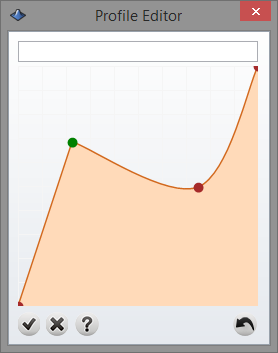
Move a control Point: To move a point just place the cursor over a point and drag it:
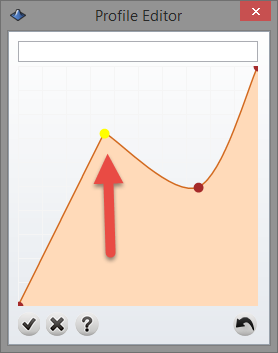
Delete a control Point:
To Delete a point just click with secondary button over the point.
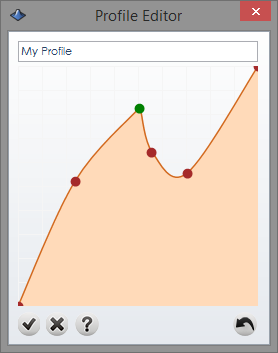
Once you finish just click over cancel button to discard the changes, or type a name for this profile and click over accept button
  to save the profile:
From curve:
This is a good example of a new profile curve:
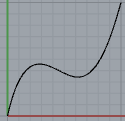
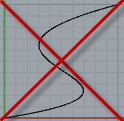
Although you should pay attention on this cases, the curve can not go back on the x axis:
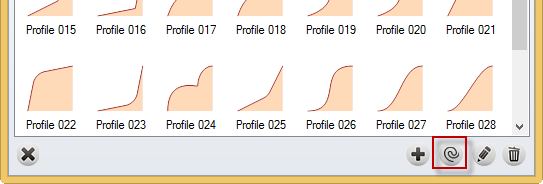
Now click over Add from curve icon  type a name for the new profile and click ok, the profile will be available from the main selector: